

Purpose
The Google Cloud Platform integration connects AirMDR to Google Cloud APIs by using a dedicated service account. After the connection is configured, AirMDR can retrieve supported security and operational information from the selected Google Cloud organization and projects. AirMDR provides two configuration methods:Pre-requisites
User Organization must define Owner or Security Admin role (
roles/owner or roles/securitycenter.admin) in your GCP organization.User must have Organization Admin permissions to enable services at the organization level.
Service Tier Requirements
Service Tier Requirements
- Select your organization, and enter keyword “Security” in the search bar.
- Select the Security Command Center.
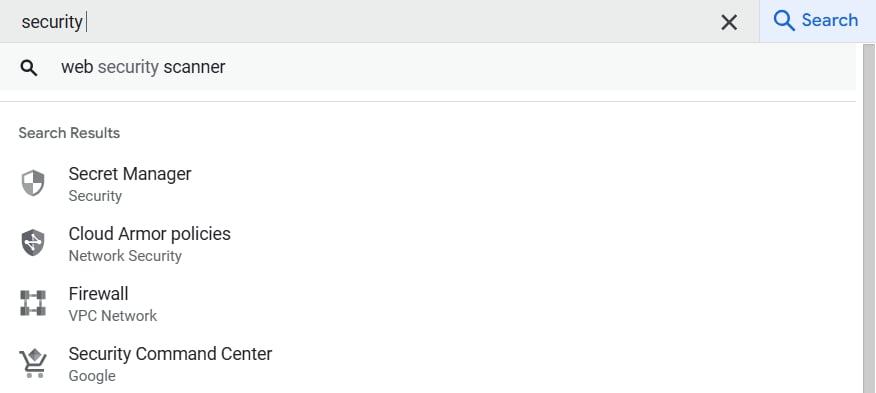
- Click on “GET THE SECURITY COMMAND CENTER”.
- Make sure Service Tier is Premium (Paid) for your organization.
SCC Editions: Standard vs. Premium Feature support (For reference)
Authentication
Authentication
AirMDR uses a Google Cloud service account JSON key to authenticate with Security Command Center.
Required Authentication Details
Credential example
Credential example
The
Service_account_json field must contain the complete JSON object, not only the service-account email or key ID.Runtime access model
The AirMDR service account uses read-only permissions for the currently documented skills. It does not require permission to modify Google Cloud resources.The script performs temporary read/write setup actions because it creates the service account, assigns roles, enables services where applicable, and generates a service-account key.Role-Based Access Considerations
Role-Based Access Considerations
The service account must have permission to read Security Command Center findings from the target organization.Recommended minimum role:
Additional roles may be required depending on the customer’s GCP hierarchy, organization policies, and AirMDR use case.
Use least-privilege access. Assign only the permissions required for AirMDR to retrieve Security Command Center findings.
Setup-operator permissions
Setup-operator permissions
The following permissions are required only by the administrator running the script or completing the manual setup. They are not runtime permissions for the AirMDR service account.
Supported Versions
Supported Versions
Method 1: Use a Script Setup Steps
Use this method to automate the service-account and IAM configuration steps.1
Obtain the Google Cloud Organization ID
The Organization ID already exists in Google Cloud and must be entered before the script is generated.
- Sign in to the Google Cloud Console.
- Open the project selector in the top navigation bar.
- Select the required organization.
- Open the organization settings or Manage resources page.
- Locate Organization ID.
- Copy the numeric value.
Do not enter the organization name, domain, project name, or project number in the
Organization_idfield.
2
Open the GCP connection form in AirMDR
- Sign in to AirMDR.
- In the left navigation pane, select Integrations.
- Search for Google Cloud Provider.
- Open the integration.
- Select the Connections tab.
- Click + Create.
- Enter a unique instance name.
Example:example-org-gcp - Select Use a Script.
3
Generate and download the script
- Under Select the script language you want to use, select Python or Terraform.
- Enter the following information:
- Review the entered Organization ID and Project ID.
- Click the Download icon.
The selected script (Python or Terraform) is downloaded to your computer.
Security recommendation: Review the downloaded script before running it. Confirm that the organization, project, service-account ID, APIs, and IAM roles match the approved configuration.
4
Open Google Cloud Shell
- Open Google Cloud Shell.
- Confirm that you are signed in with the approved Google Cloud administrator account.
- Verify that the correct project is active.
You can optionally check the active project by running:gcloud config get-value project
5
Upload the script
Upload the downloaded script by using one of the following methods:
- Drag the file from your computer and drop it into the Cloud Shell terminal window.
(OR) - Select the three-dot menu at the top of the Cloud Shell pane, and then select Upload.
6
Run the script
Run the uploaded Python script:If the downloaded file has a different name, replace
script.py with the actual filename:The account running the script must have permission to perform every operation included in the script. Using a script reduces manual steps but does not remove Google Cloud permission requirements.
7
Review the script output
After the script completes:
- Confirm that it reports successful service-account creation and IAM role assignment.
- Copy the
Service_account_jsongenerated by the script. - Copy or confirm the
Organization_idshown in the output. - Do not close the terminal until the required values have been entered in AirMDR.
8
Provide the credentials in AirMDR
- Return to the AirMDR connection form.
- In
Service_account_json, paste the complete JSON credentials generated by the script. - In
Organization_id, enter the numeric Organization ID. - Expand Advanced Configuration only if additional settings are required.
- Click Save.
- Validate the connection.
Method 2: Do It Yourself Setup Steps
This section explains how to collect the two required values for AirMDR:service_account_jsonorganization_id
1
Open Google Cloud Console
- Sign in to the Google Cloud Console.
- In the ribbon, click on your project name.
- From the top project selector, select the project that will be used for the AirMDR integration.
Confirm that you are working under the correct organization and project.The selected project is where the service account and API configuration will be managed.
2
Enable Security Command Center API
- In Google Cloud Console, open the navigation menu.
- Go to APIs & Services.
- Select Library.
- Search for Security Command Center API.
- Open the API page.
- Click Enable.
3
Create a Service Account
- In Google Cloud Console, open the navigation menu.
- Go to IAM & Admin.
- Select Service Accounts.
- Click Create Service Account.
- Enter the following details:
- Click Create and Continue.
- Skip role assignment (Permissions and Principals with access) at this step if the role will be assigned at the organization level.
- Click Done.
4
Generate the Service Account JSON Key
- Search the service account created for AirMDR.
For example:airmdr-integration-gcp(as shown)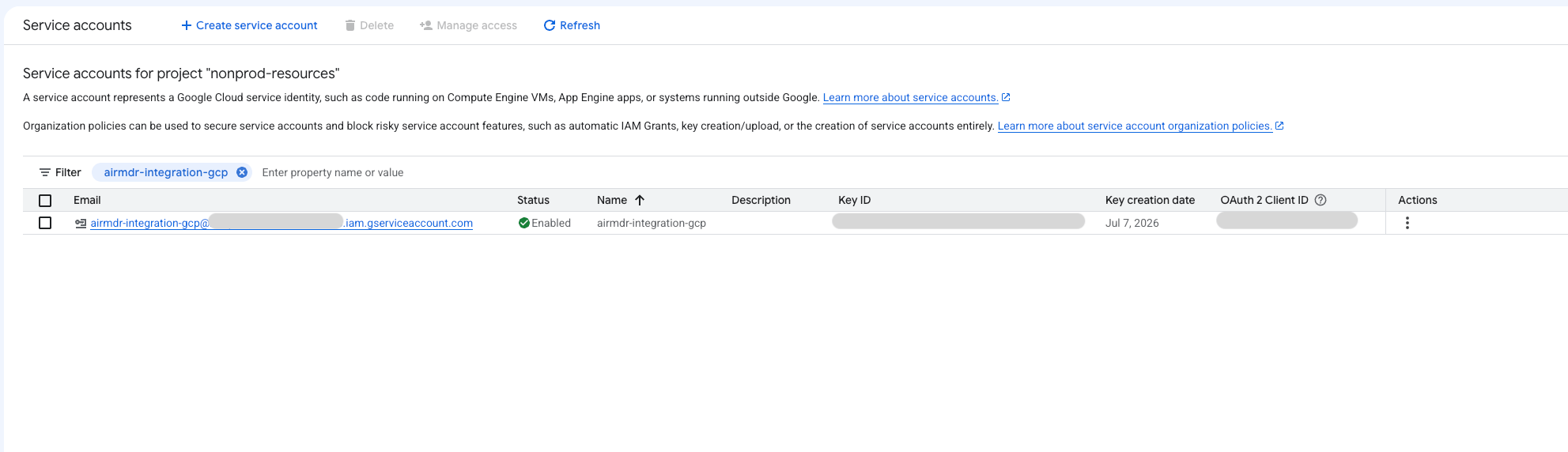
- Open the Keys tab.
- Click Add Key drop-down.
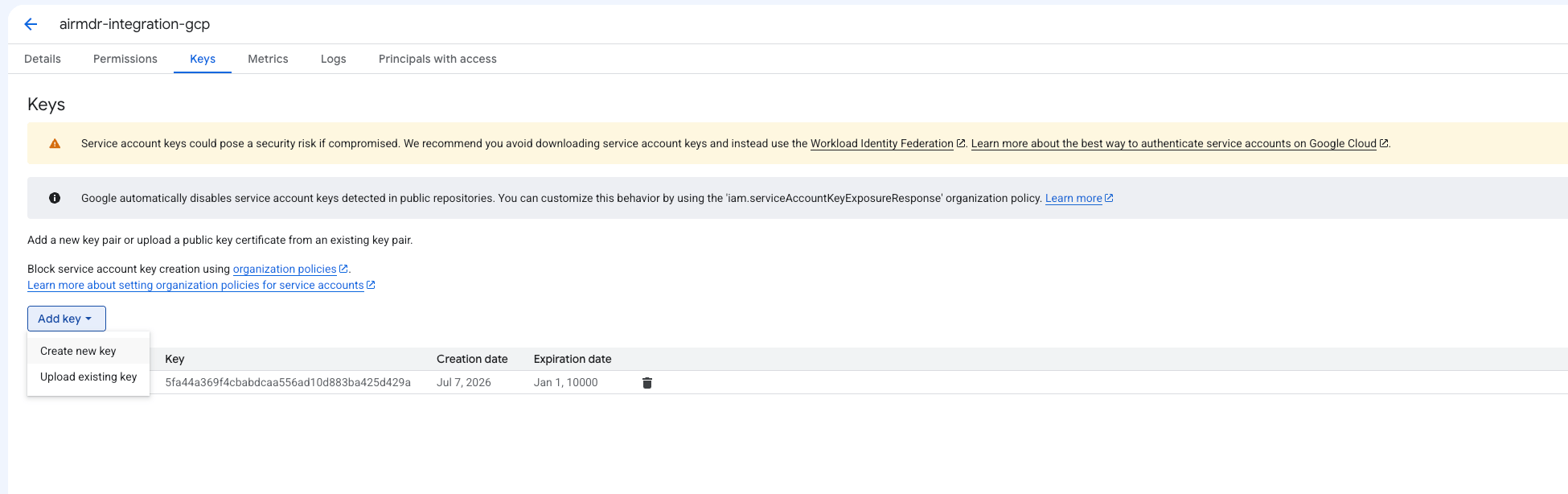
- Select Create new key.
- Select JSON as the key type.
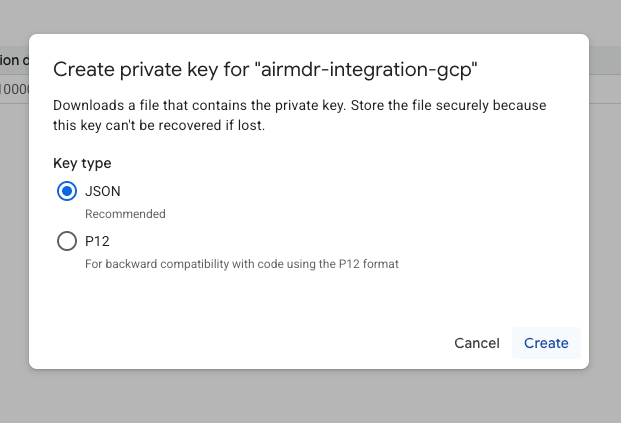
- Click Create.
Permission updates for service accounts may take a few minutes to propagate. If access is not granted immediately, wait a few minutes and try again.
- The JSON file is downloaded automatically.
The downloaded file is theservice_account_jsonrequired in AirMDR.
Example JSON Structure: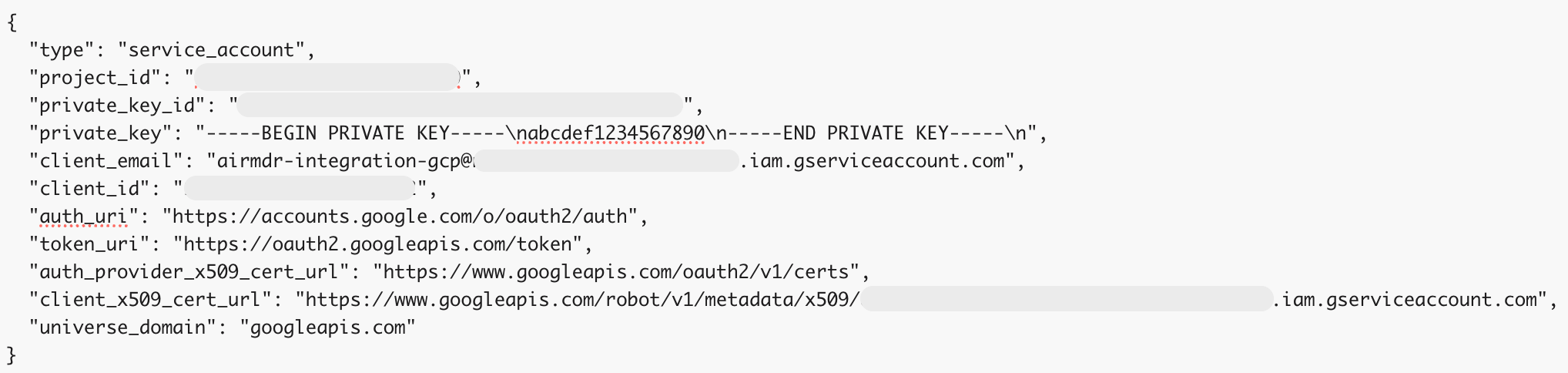
5
Assign IAM Role to the Service Account
- In Google Cloud Console, go to IAM & Admin.
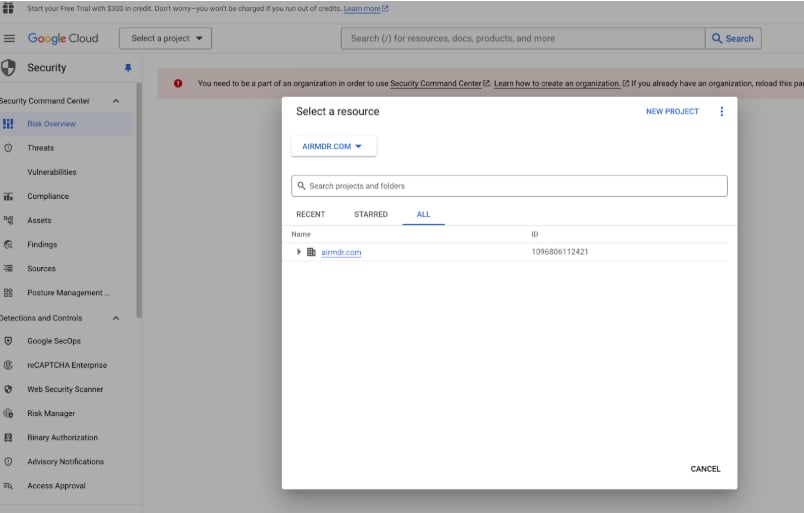
-
Select IAM.
Make sure the correct organization is selected.
-
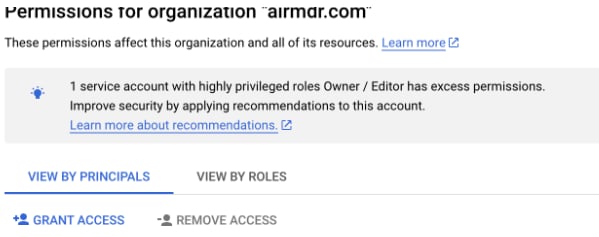
Click Grant Access.
-
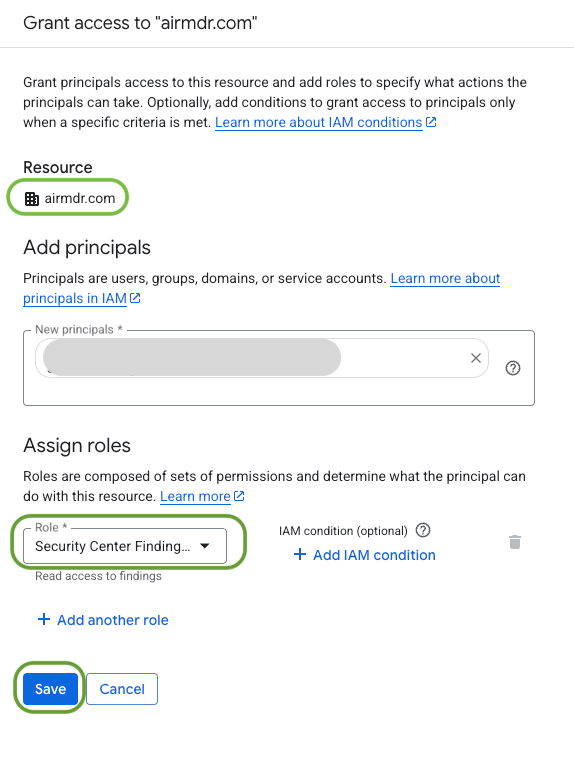
In Add Principals → New principals, enter the service account email.
Example: airmdr-integration-gcp@example-project.iam.gserviceaccount.com -
In Assign Roles → Select a role, search for and select:
- Security Center Findings Viewer (
roles/securitycenter.viewer) → Grants read accessMake sure the correct Organisation is selected under Resource.
For example: airmdr.com (Reference only as shown below)
- Security Center Findings Viewer (
-
Skills and Required IAM Roles
-
Click Save.
When finished, you should have a service account named airmdr-agent, credentials for this service account in a JSON file saved to your host.
6
Get the Organization ID
- In Google Cloud Console, open the project selector at the top.
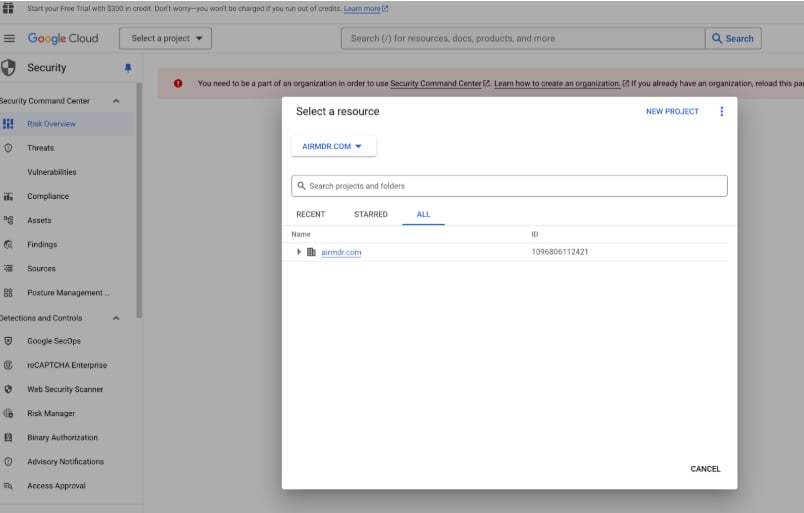
- Select the required organization.
- Click the three-dot menu or More option.
- Select Settings.
- Locate the Organization ID field.
- Copy the numeric organization ID.
Example: 123456789012This value is theorganization_idrequired in AirMDR.
Configure GCP Security Command Center API in AirMDR Integrations Dashboard
- Navigate to AirMDR, provide the credentials and click Login
- Navigate to the AirMDR Integrations Dashboard in the left navigation pane and select Integrations.
- Use the search option, enter the keyword “Google Cloud Provider”, select the Connections tab, and click + Create button.
- Enter an unique name to the Instance (e.g.,
your org name-GCP) to easily identify the user connection by AirMDR. - Enter the application credentials like Service_account_json and Organization_id in the Authentication Details field params, and click Save.
Additional Information
🧰 Error Handling
🧰 Error Handling
🔄 Monitoring & Logs
🔄 Monitoring & Logs
Where to MonitorSample Error LogRecommended Log Levels
Sample Success Log
🛑 Security & Access Best Practices
🛑 Security & Access Best Practices
Follow these recommendations to maintain a secure and compliant Google Cloud Security Command Center (GCP SCC) integration with AirMDR.✅ Do
- Use a dedicated Service Account for the AirMDR integration.
- Grant only the minimum IAM permissions required (principle of least privilege).
- Store the Service Account JSON securely in an encrypted secrets manager or credential vault.
- Rotate Service Account keys periodically according to your organization’s security policy.
- Enable Multi-Factor Authentication (MFA) for privileged Google Cloud accounts.
- Regularly review IAM roles and remove unnecessary permissions.
- Monitor Google Cloud Audit Logs for authentication and permission changes.
- Validate the integration after updating IAM roles or rotating credentials.
- Keep the Security Command Center API enabled and accessible.
- Immediately revoke compromised or unused Service Account keys.
- Don’t share the Service Account JSON file over email, chat, or unsecured channels.
- Don’t commit Service Account keys to source code repositories.
- Don’t assign excessive permissions such as Owner or Editor unless absolutely necessary.
- Don’t reuse the same Service Account across multiple unrelated applications.
- Don’t leave unused Service Account keys active.
- Don’t disable audit logging for Service Account activities.
- Don’t expose Organization IDs or sensitive credentials in public documentation or screenshots.
- Don’t hardcode credentials in scripts or configuration files.
- Don’t ignore authentication or permission-related errors during integration validation.
- Don’t skip periodic access reviews and credential rotation.
👉 Support & Maintenance
👉 Support & Maintenance
- 📧 Contact AirMDR Support through your designated support channel.
- 🔁 Rotate credentials regularly.
- 🔄 Reconnect in AirMDR when secrets are changed.
🛑 Data Flow & Security
🛑 Data Flow & Security
Data Exchanged
Security Considerations
- Authentication is performed using a Google Cloud service account.
- API communication uses Google Cloud HTTPS endpoints.
- Store the service account JSON securely.
- Rotate the JSON key based on the organization’s credential rotation policy.
- Revoke unused keys immediately.